Home » How to Enable SEO Alters
How to Enable SEO Alters

Overview

The following docs offers steps-by-steps instructions for enabling and configuring the SEO Alerts

Enable SEO Alerts
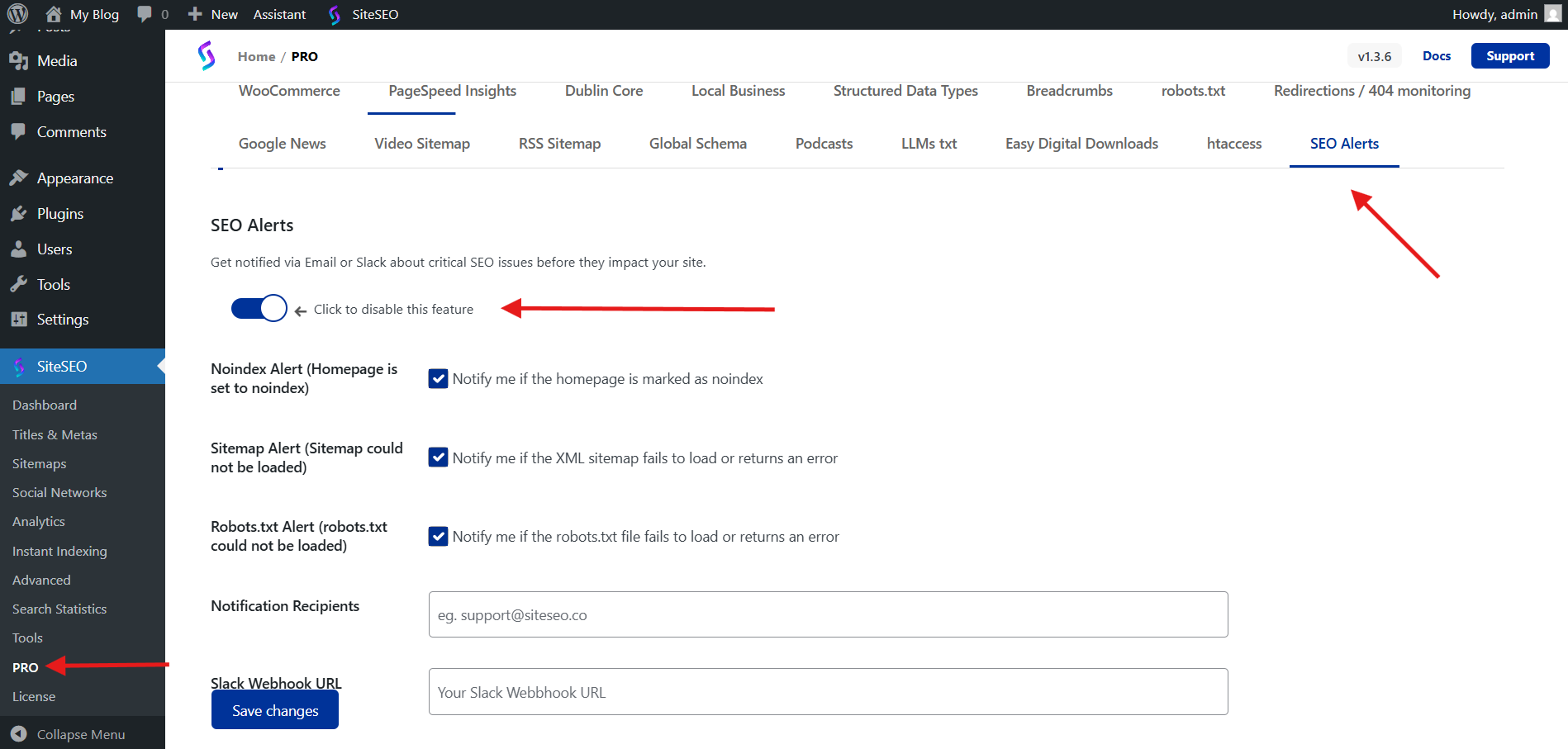
  • Navigate to the WordPress dashboard -> SiteSEO -> PRO -> SEO Alerts
  • Enable toogle and other setting as per you whant
seo-alerts

How to Get a Slack Webhook URL

To get a webhook for Slack, you are required to create a App in slack, which will let you generate the webhook, which will be used to send event data to your Slack workspace.
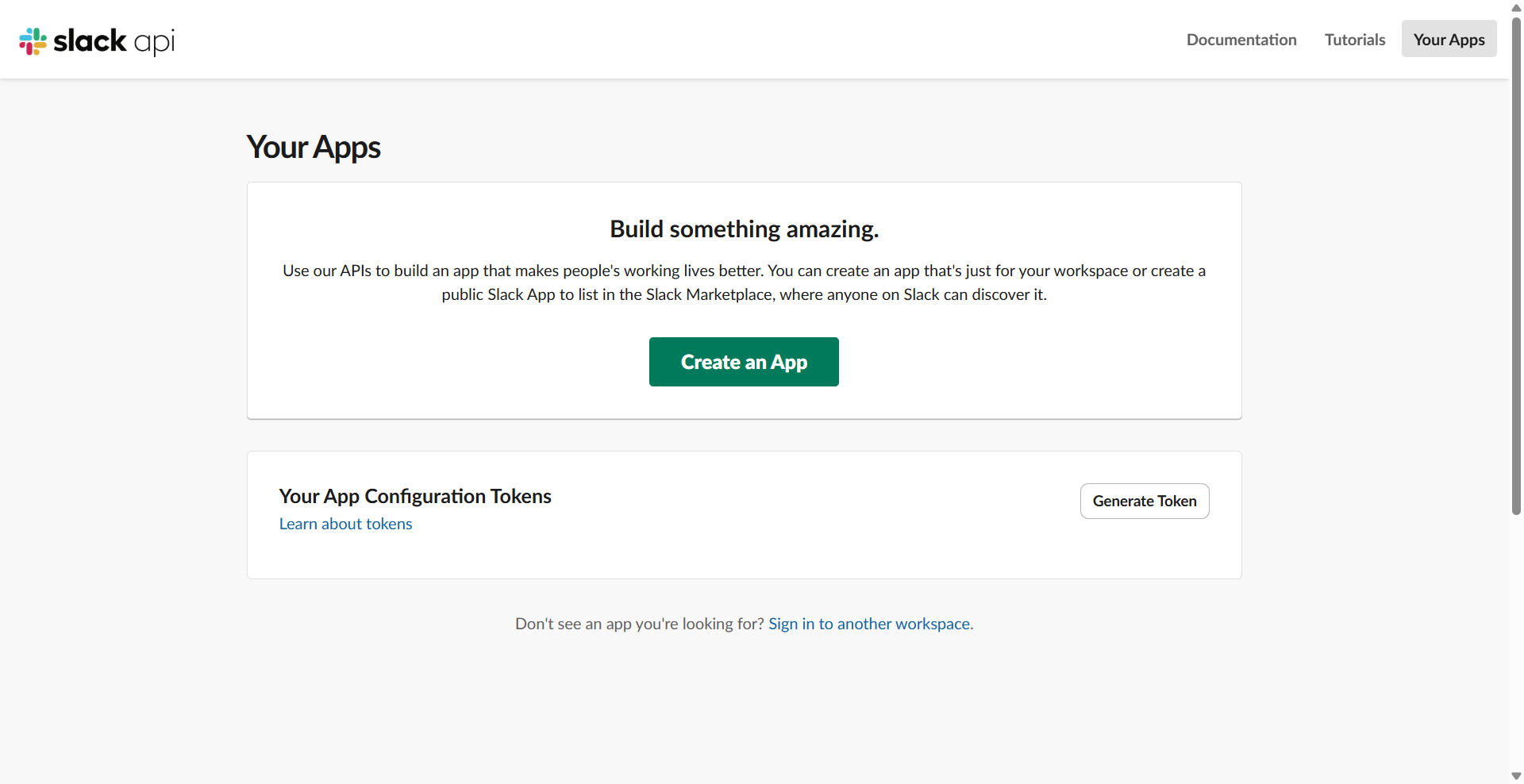
slack-api-app-creation-page
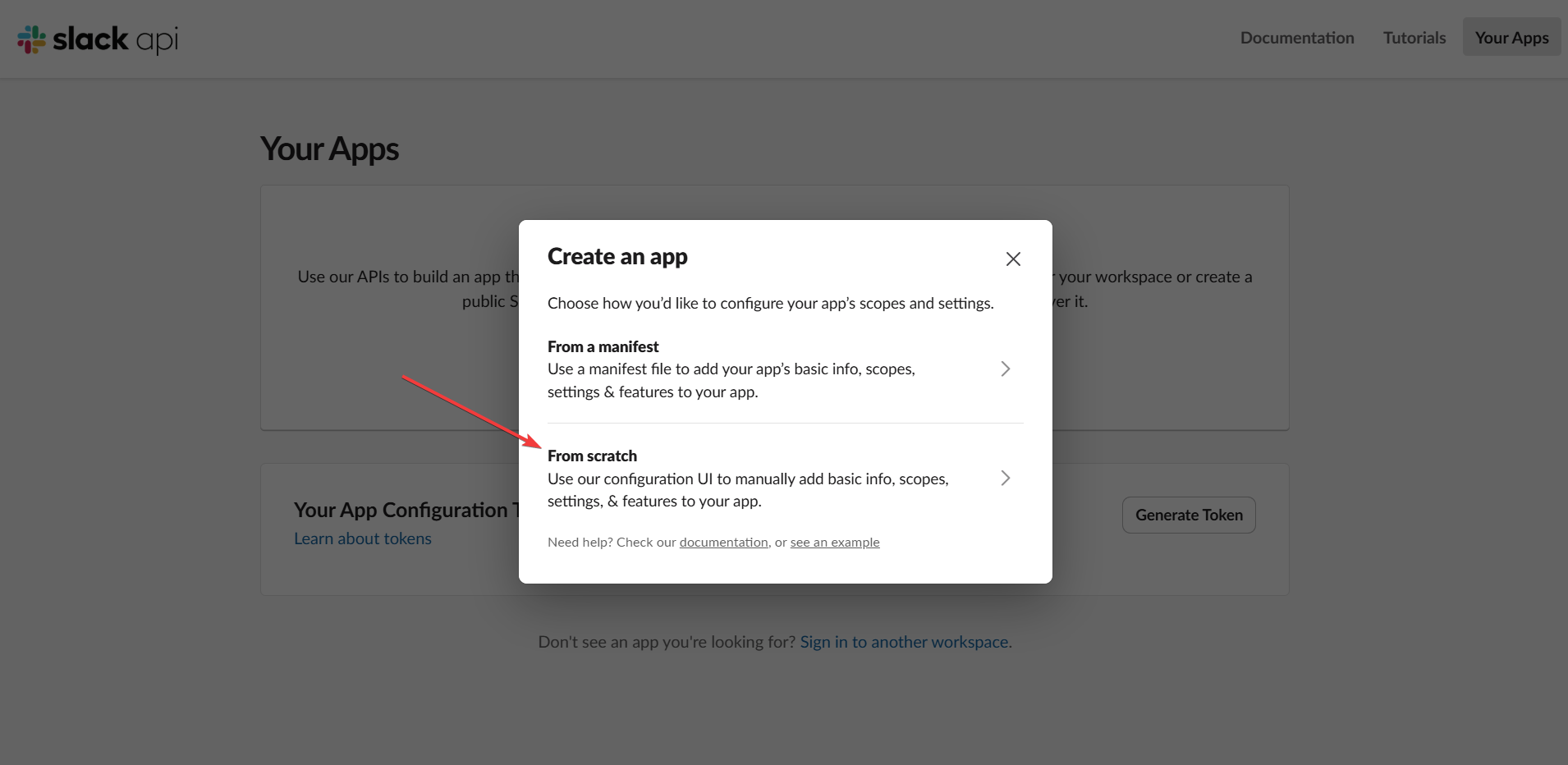
  • A Popup will show up in that select From Scratch
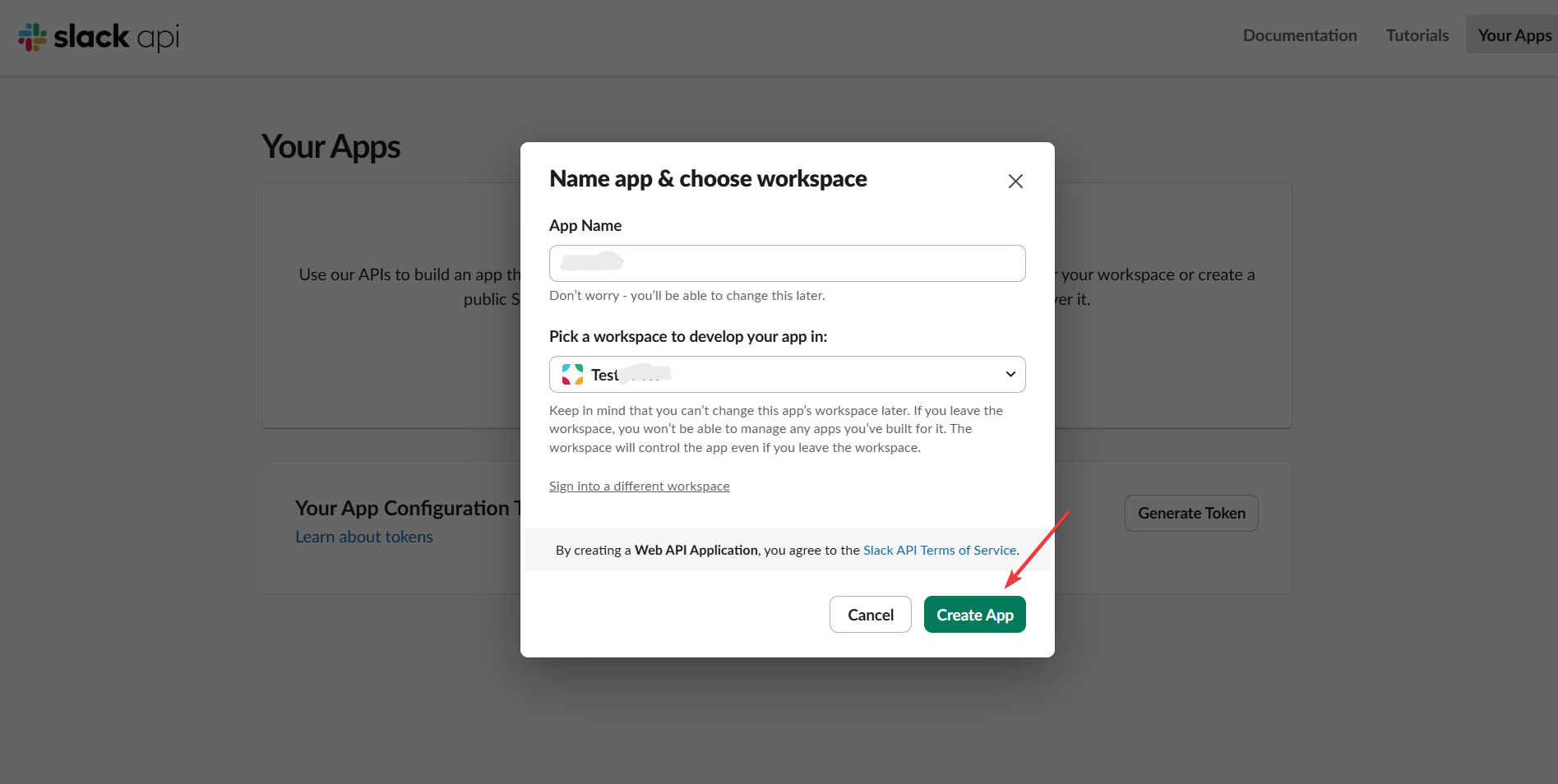
  • Now it will ask you to name the App, and select the Workspace you want to let the App control.
  • Once you fill the details, click on Create App button
slack-app-from-scratch
slack-app-create-app-form
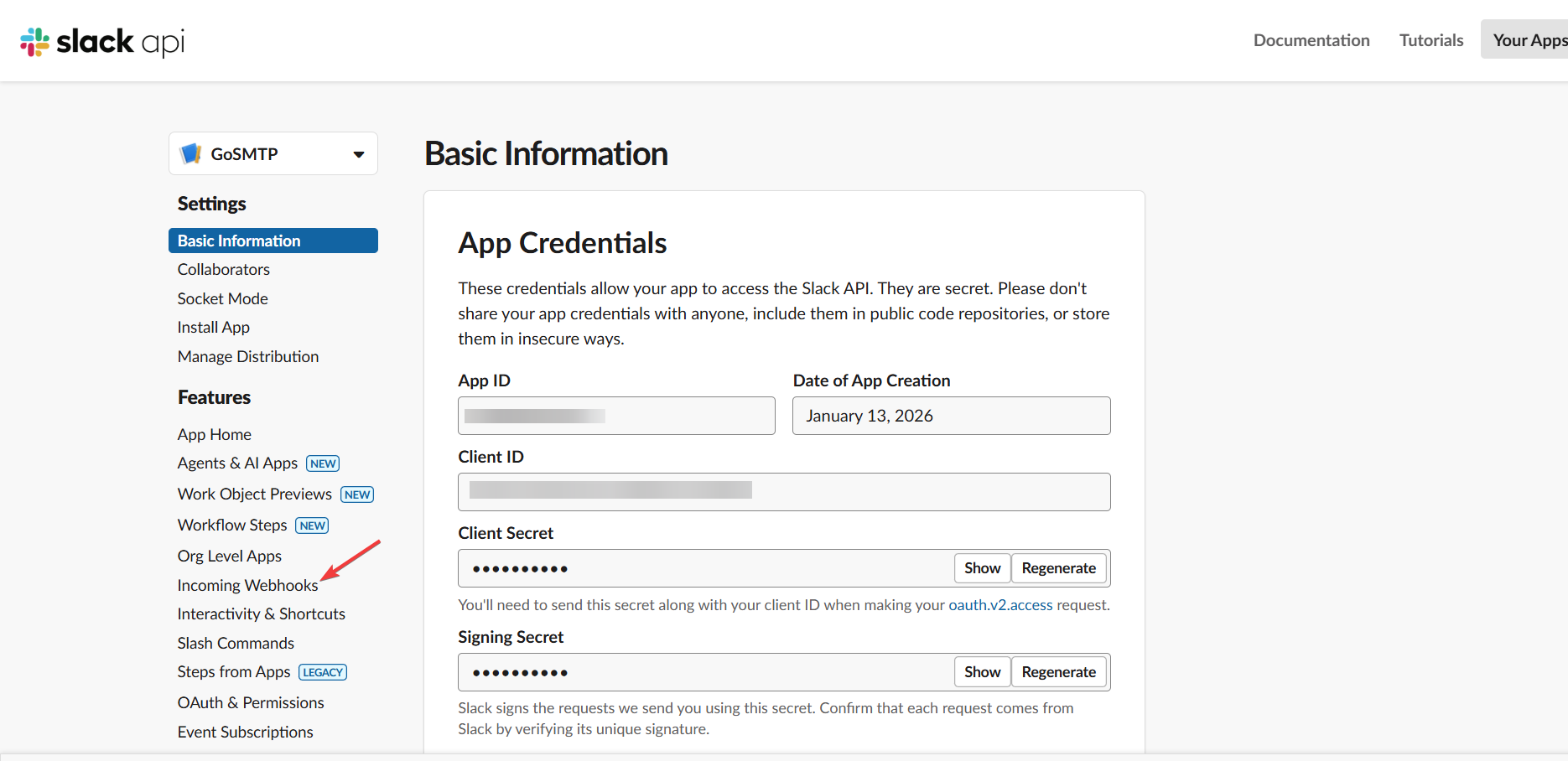
  • Now you will be redirected to Basic Information page for that App.
  • In the left navigation, look for Incoming webhooks and click on that.
slack-api-app-dashboard
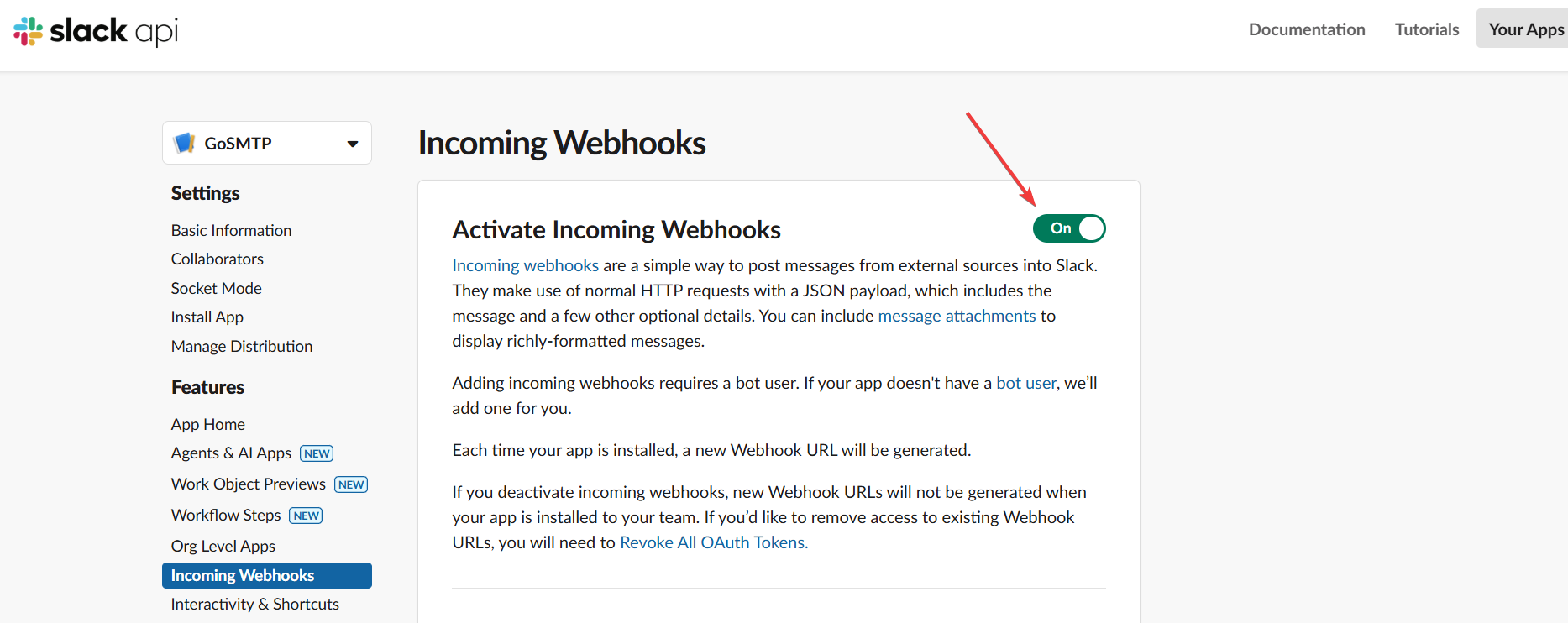
  • On the Incoming Webhooks page, you will need to enable Incoming Webhooks if not enabled already.
slack-app-incoming-webhook-enabled
  • Now you will be redirected to Basic Information page for that App.
  • In the left navigation, look for Incoming webhooks and click on that.
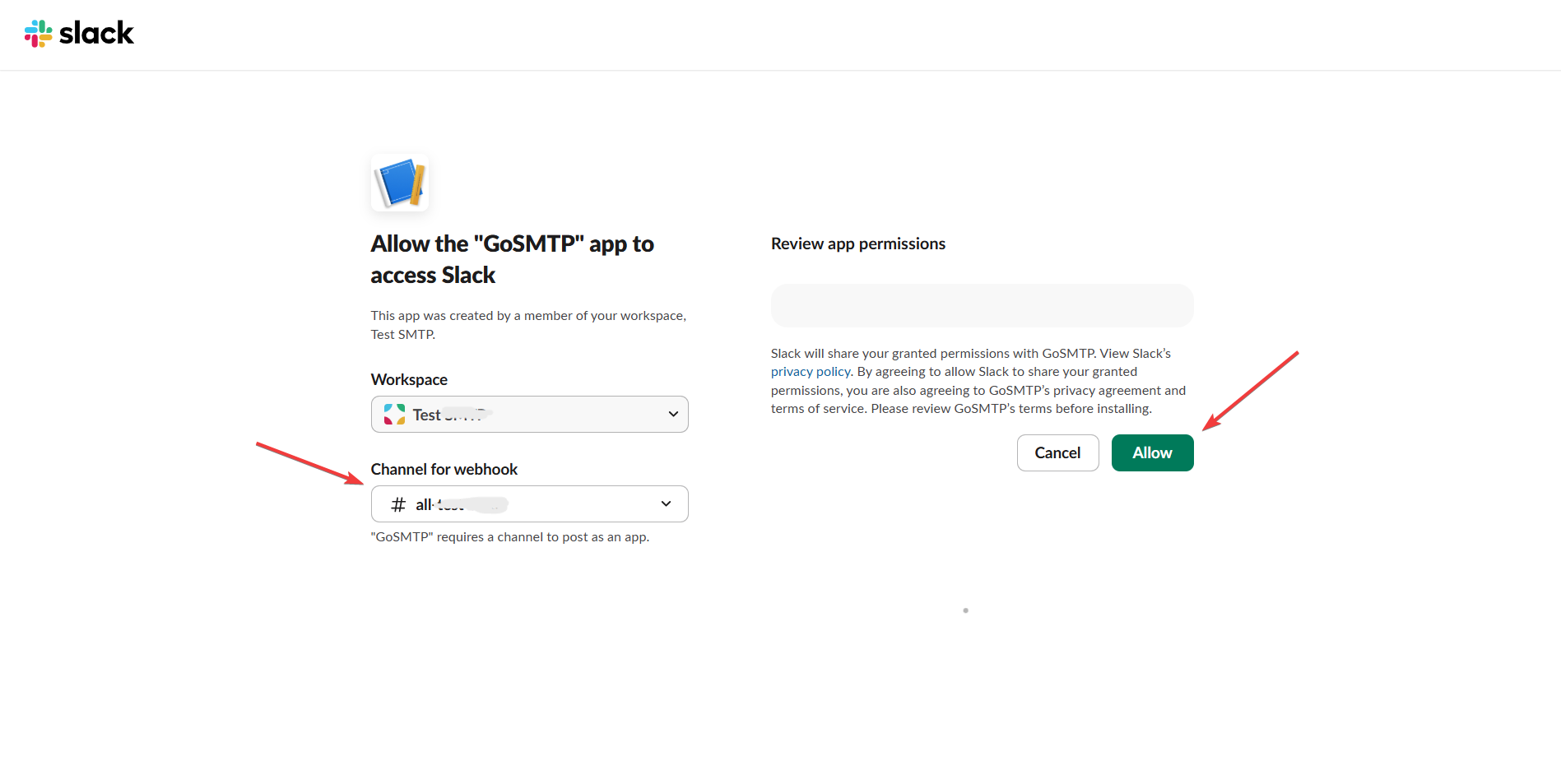
slack-allow-the-app
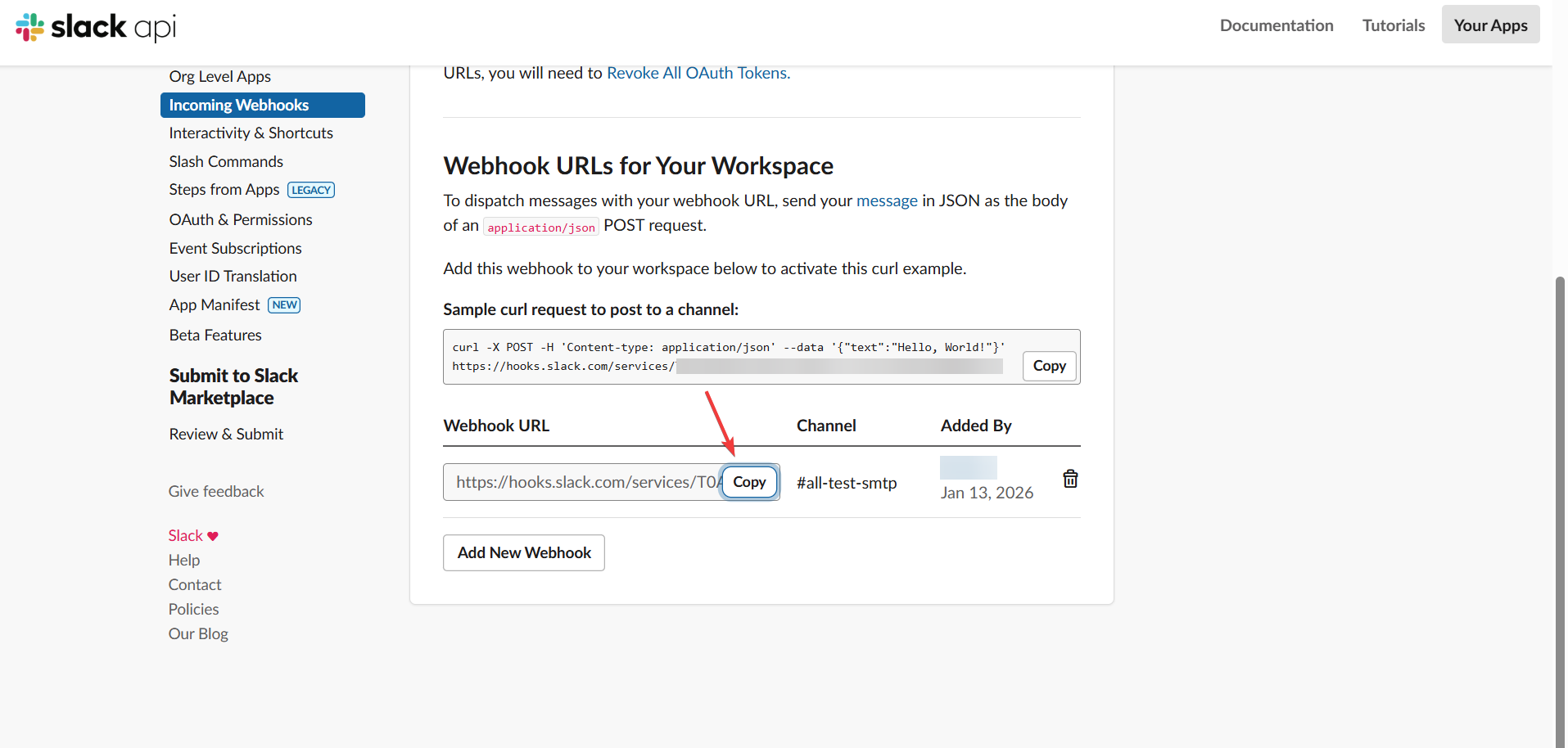
  • After you allow you will see that a webhook URL has been generated
  • Copy that URL and now we need to paste it in SiteSEO plugin field
slack-app-webhook-generated
      Was this page helpful?
      Newsletter Subscription
      Subscribing you to the mailing list