How to Connect Search Console
-
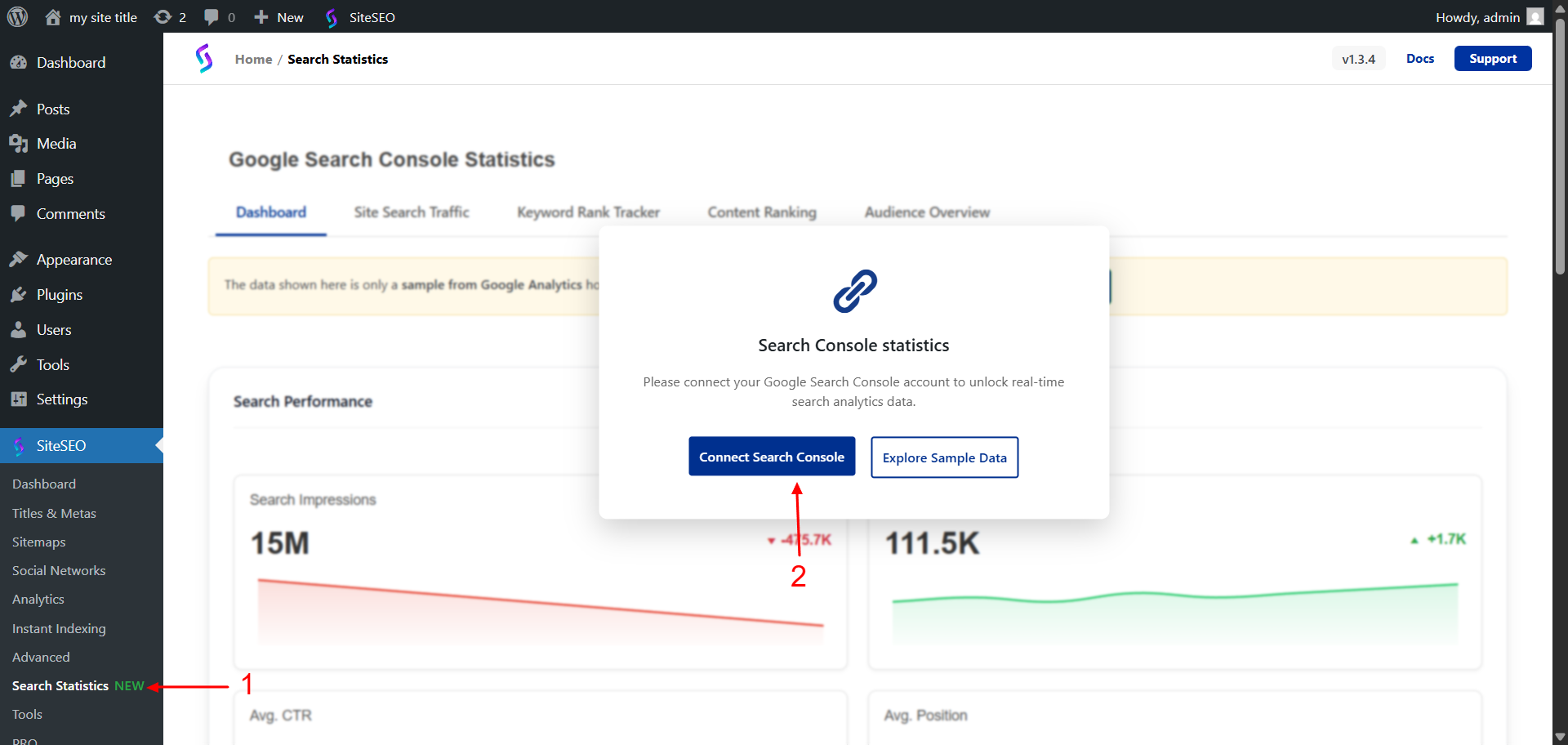
Navigate to the WordPress dashboard -> SiteSEO -> Search Statistics.
-
On the Search Statistics page, you will notice an option to connect Google Search Console. Click the Connect Search Console button.
-
After that, a popup will appear asking you to connect your site, as shown below.
-
There are two options: connect the current site, or select a subdomain that is already connected in Google Search Console.
-
If you connect a new domain, a new property will be created and verified automatically in Google Search Console. The sitemap will also be submitted during this process.
-
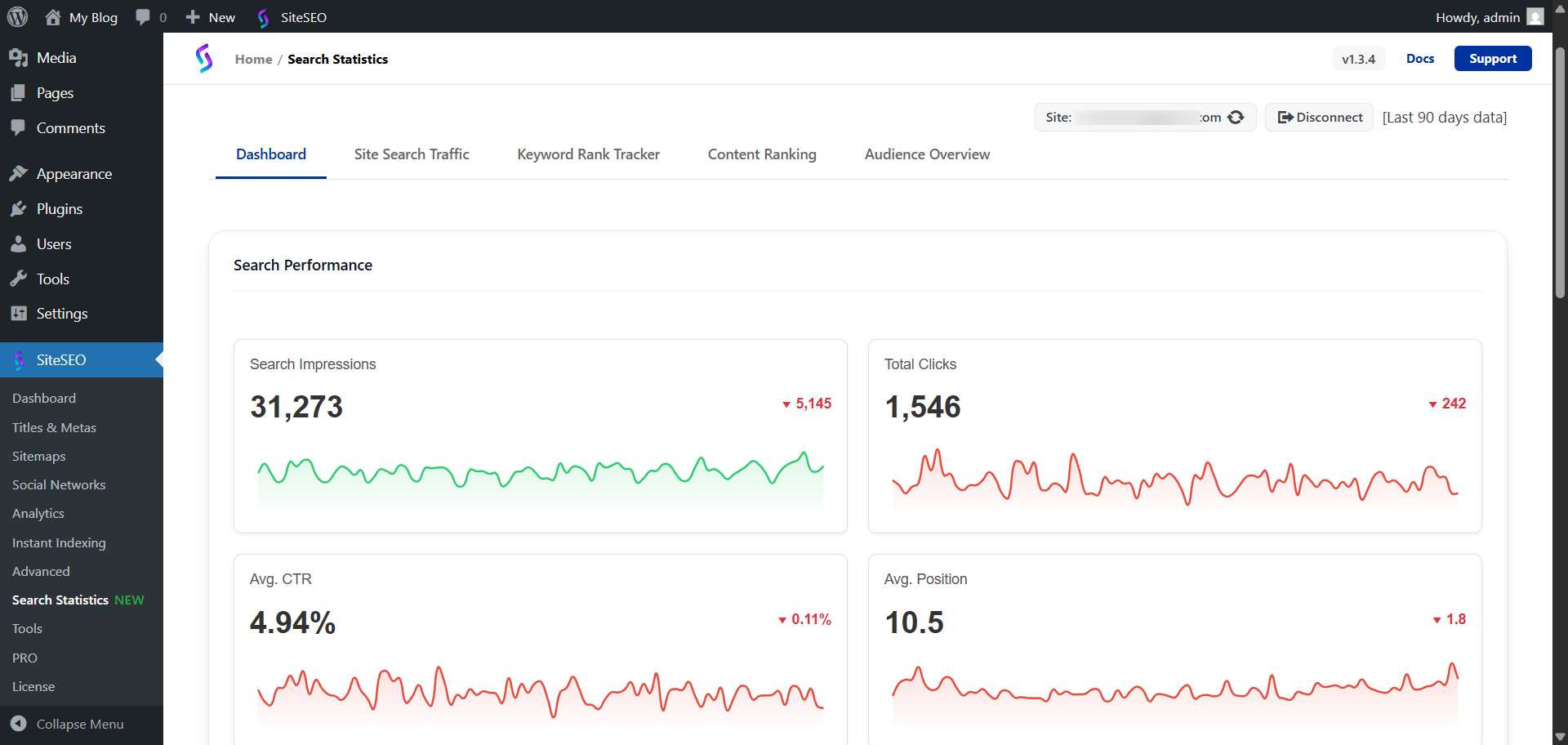
Once the connection is successful, you will be able to view up to 90 days of Google Search analytics data.
How to Manually Refresh Site Analysis
-
To manually refresh the analysis, click the Refresh button located next to the connected site URL. Once clicked, it will update the analysis with the latest data. Please refer to the screenshot below for guidance.
-
Note - The site analysis is also refreshed automatically every 12 hours.
-
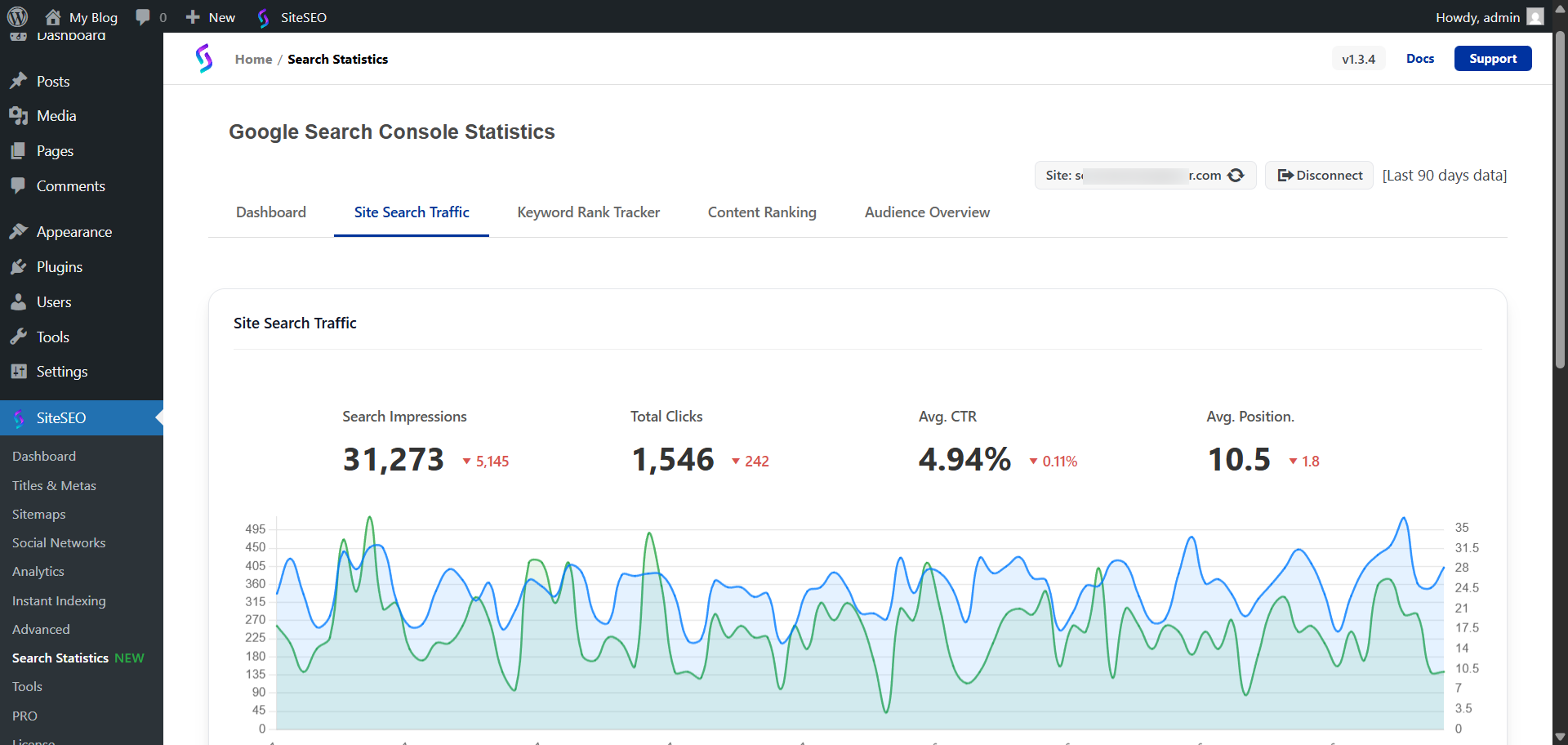
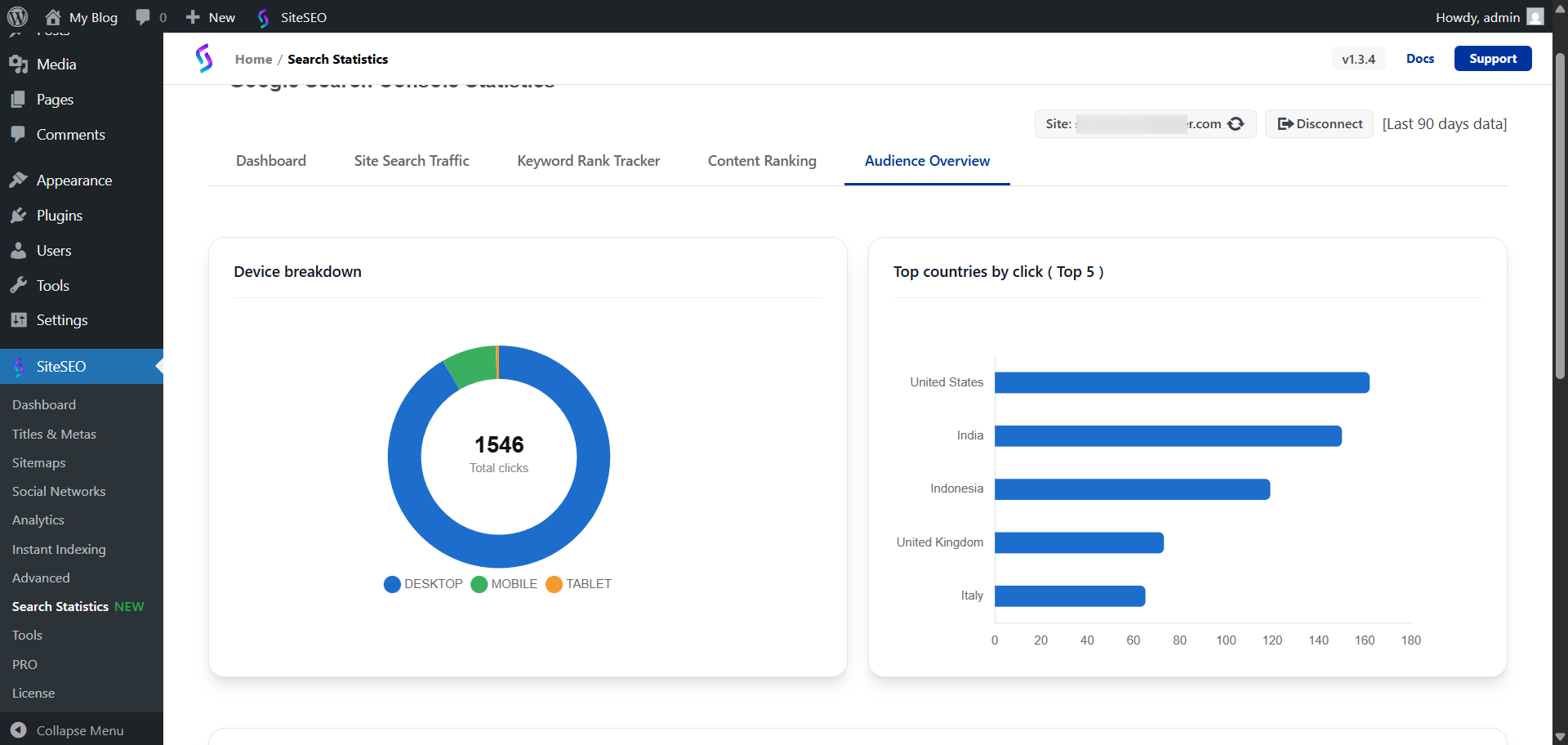
Also, you will be able to view many more analytics, such as Content Performance (Top 5), Click Score, Keyword Rankings (Top 5), Content Analysis (Top 5), Content Analysis (Top 5), Content Analysis (Top 30).